
Smart Translate
A Slack Translation App That Streamlines Work in Global Teams
What is SmartTranslate?
SmartTranslate is an advanced translation app for Slack that enables real-time message translation within channels. It helps global teams and multinational organizations communicate smoothly across language barriers.
By integrating SmartTranslate into your workflow, you can eliminate language obstacles in international business environments and streamline both internal and external communication.
Enhance your productivity and global competitiveness—without sacrificing the convenience of Slack—by using SmartTranslate today!
Ideal for Global Business Environments
In multilingual settings, smooth translation directly impacts work efficiency.
SmartTranslate supports seamless and stress-free information sharing.

Smooth Multilingual Communication
Even when team members speak different languages, only the necessary messages are translated, enabling efficient information sharing.
With real-time translation, you can communicate seamlessly with overseas offices and international partners without worrying about language barriers.
With real-time translation, you can communicate seamlessly with overseas offices and international partners without worrying about language barriers.

Instant Real-Time Communication
When you send a message, it is automatically translated and the translated text appears below the original message.
There’s no need to open a separate translation tool each time, allowing for smooth communication without interrupting the flow of conversation.
There’s no need to open a separate translation tool each time, allowing for smooth communication without interrupting the flow of conversation.

Side-by-Side Original & Translation
The original message and its translation are shown side by side, helping prevent misunderstandings and supporting accurate comprehension.
This makes it easier to organize information in multilingual environments and reduces the risk of overlooking important messages.
This makes it easier to organize information in multilingual environments and reduces the risk of overlooking important messages.


Improved Efficiency and Increased Productivity
In daily work, copying and pasting messages into a translation tool to understand different languages is a significant burden.
By using SmartTranslate, you can eliminate this hassle, leading to better efficiency and higher productivity.

Easy Setup with Simple Pricing Based on Character Count
With a pricing plan based on the number of accounts, you’re not limited by team size and can translate only what you need, when you need it, allowing for flexible usage.
After setup, simply install the app and select your source and target languages to start using it right away.
After setup, simply install the app and select your source and target languages to start using it right away.

Skip Unnecessary Translations
Translation is skipped between users who share the same language, saving character usage by preventing needless translations.
Displaying only necessary translations improves information clarity and boosts work efficiency.
Displaying only necessary translations improves information clarity and boosts work efficiency.

Save Time, Speed Up Work
By reducing the need for manual translation and using separate translation tools, you save time on tasks.
Real-time translation enables faster decision-making and boosts overall team productivity.
Real-time translation enables faster decision-making and boosts overall team productivity.
Perfect for These Situations and Communities
SmartTranslate can be used across various industries and situations. It is especially effective for enabling smooth communication within multinational teams and global communities.

Offshore Development & Client Communication
Supports smooth technical communication with overseas development teams and partner companies.
Reduces misunderstandings caused by language differences, helping projects proceed smoothly.
Reduces misunderstandings caused by language differences, helping projects proceed smoothly.

Multinational Team Communication
Facilitates smooth communication with foreign employees and strengthens overall team collaboration.
Enables real-time information sharing on Slack without language barriers.

International Academic Communities
Ideal for information sharing and discussions at universities and research institutions with many international students and researchers.
Facilitates stress-free communication in multilingual environments.
Facilitates stress-free communication in multilingual environments.


Expanded Language Support & Customization Options
Currently supports English, Japanese, Korean, Chinese, Vietnamese and Russian.
(More languages will be added gradually.)
If you have any requests for feature or language customization, please contact us for a quote.

Supported Languages
・English
・Japanese
・Korean
・Chinese
・Vietnamese
・Russian
+α
(Languages will be gradually expanded, supporting up to approximately 30 languages. If you would like to request additional languages, please feel free to contact us.)
・Japanese
・Korean
・Chinese
・Vietnamese
・Russian
+α
(Languages will be gradually expanded, supporting up to approximately 30 languages. If you would like to request additional languages, please feel free to contact us.)

Options
Additional options can be added through customization.
If you have any requests, such as “I want this feature” or “Please support ○○ language,” feel free to contact us.
If you have any requests, such as “I want this feature” or “Please support ○○ language,” feel free to contact us.
Plans & Pricing
Free
0USD/month
Free up to 15,000 characters
(Translation will pause once the limit is reached. It will automatically reset on the first day of the following month, or you can resume immediately by upgrading to a paid plan.)
Install for Free
(Translation will pause once the limit is reached. It will automatically reset on the first day of the following month, or you can resume immediately by upgrading to a paid plan.)
Pro
28USD/month
Up to 250,000 characters
(Usage will be suspended once the 250,000-character limit is exceeded.)
Buy in App
(Usage will be suspended once the 250,000-character limit is exceeded.)
Business
68USD/month
Up to 1,000,000 characters
(If usage exceeds 1,000,000 characters, a separate quote will be provided.)
Buy in App
(If usage exceeds 1,000,000 characters, a separate quote will be provided.)
FAQ
What payment methods are available?
We accept various credit cards for payment. We also support Link by Stripe, so if you're already registered with Link, you can easily make payments using your saved payment information.
Is there a limit on the number of users?
Since pricing plans are based on character count, there is no limit on the number of users.
What happens if I exceed the monthly character limit?
Translation display pauses once the character limit is reached. Usage resets at 00:00 (UTC) on the first day of each month, and unused allowance does not carry over. Service resumes upon the monthly reset or by upgrading to a higher-tier plan. Please rest assured that you will not be charged automatically.
Which translation engine do you use?
We use the Google Cloud Translation API.
Is translated content used for AI training?
Smart Translation does not use any translated content for AI model training.
All translation processing is performed using the Google Cloud Translation API.
What data does Smart Translation store, and where is it stored?
Smart Translation stores only workspace information, user IDs, and each user's Smart Translation settings in a database on servers located in Japan.
Original messages and translated messages are not stored.
How are characters counted in the pricing plans?
Character usage is counted according to the specifications of the Google Cloud Translation API. In principle, counting is based on the number of characters before translation. Also, even if a single message has multiple recipients, if it is translated into the same language, it is counted only once. However, if it is translated into multiple languages, it is counted once per language.
Note: Since the character counting rules follow Google Cloud Translation API specifications, they may change without notice if Google changes its specifications. (As of March 2026)
Example: When the sender posts "こんにちは" in Japanese
- Recipients: 10 users with English settings -> only 5 characters for "こんにちは" are counted
- Recipients: 1 user with English setting + 2 users with Chinese settings -> translated into 2 languages, so 5 characters x 2 languages = 10 characters used
Character counting rules (Google-compliant):
- All full-width and half-width characters are counted as 1 character each. ("こんにちは", "コンニチハ", and "コンニチハ" are all counted as 5 characters.)
- Spaces, punctuation marks, and line breaks are also counted as 1 character each.
Note: Since the character counting rules follow Google Cloud Translation API specifications, they may change without notice if Google changes its specifications. (As of March 2026)
How to Use
Install the App on Slack

1. Click the "Add App" button.

2. Enter "Smart Translate" in the search field, find "Smart Translate" in the app list, and click the "Install" button next to the app name.

3. When the app details page appears, click "Add to Slack." This will take you to the Smart Translate introduction page on our website.

4. Click "Install/Purchase."

5. In the "Free" plan, click the "Install for Free" button.

6. When the app permission screen appears, click "Allow."

7. You will be redirected to Slack. If you are not redirected automatically, click "Redirecting to the Slack App... click here." to return to Slack.
-
8. Installation is complete.
Add the App to a Channel
Smart Translate allows you to choose whether to enable the app for each channel. You can add it only to the channels where you need it.
-

1.Click "Smart Translate" in the Apps section of Slack.
-

2.The "Settings" section displays a list of channels and supports searching by channel name (type and press Enter), navigating through all channels via "Previous/Next" pagination, and maintaining display positions even after adding or removing bots; you can enable or disable this feature using the switch to the right of the channel name (disabled by default).
Personal Settings
■Authenticate the App (First Time Only)
-
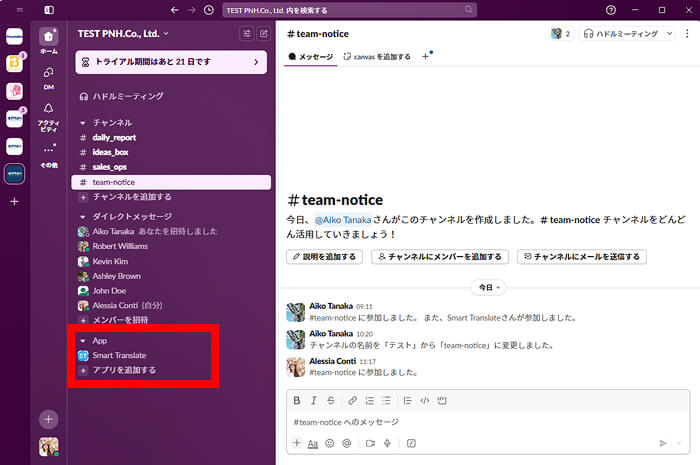
1. Click "Smart Translate" from the list of apps shown under "App."
-
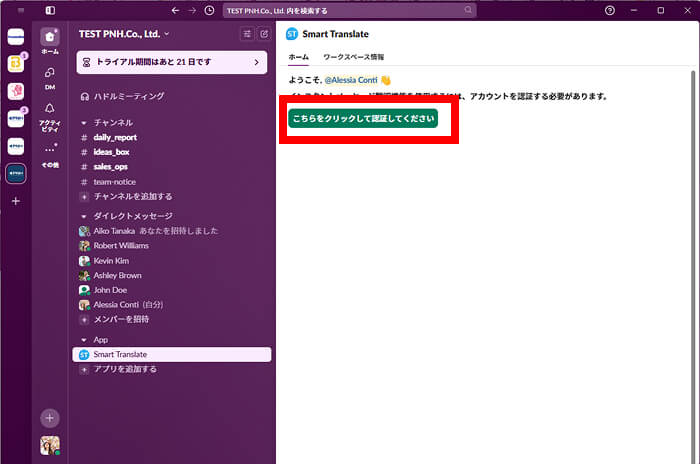
2. Click "Click here to authenticate."
-
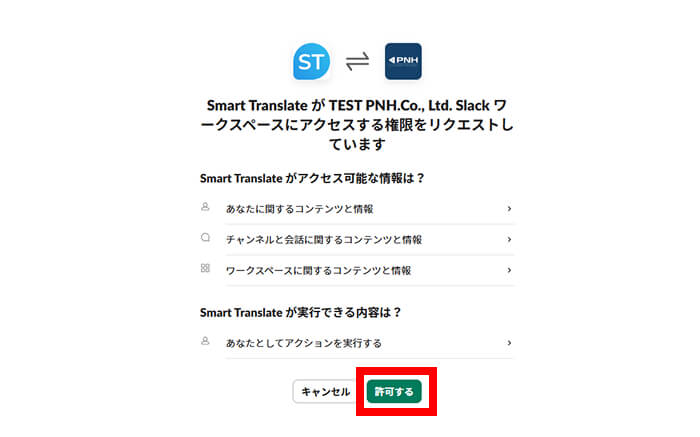
3. A permission confirmation screen will open in your browser.
Select "Allow" to complete the setup.
■Set Language Preferences
-

1. Click "Smart Translate" from the list of apps shown under "App."
-
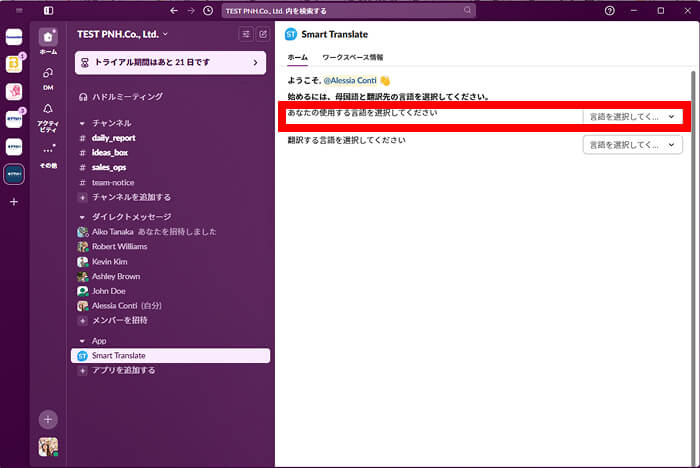
2. Set your preferred language (or native language).
In the "Preferred Language (or Native Language)" field, choose the language you usually use.
As of June 2025, English, Japanese, Chinese, and Korean are available.
Note: Translation is not performed between users who use the same language.
Check usage status
-

On the "Settings" screen, you can view your character usage for the current month (the figure subject to your plan's limit) and for today. Usage is calculated based on UTC and resets at 00:00 UTC on the first day of each month.
-
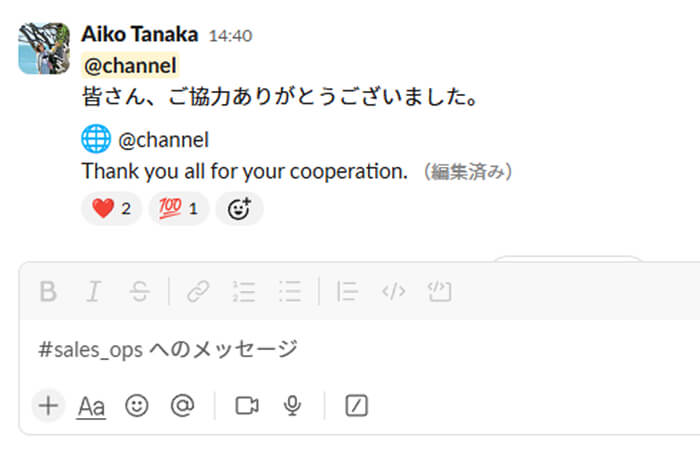
1. Messages are translated automatically as soon as you send them.
-
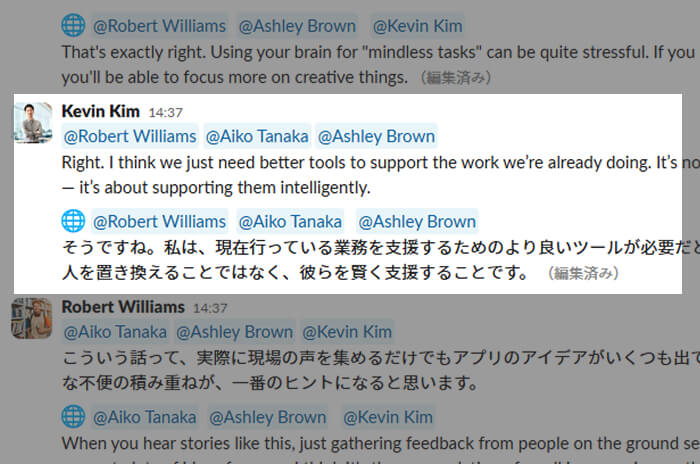
2. The original message and translation are displayed side by side, reducing misunderstandings and helping accurate communication.
-
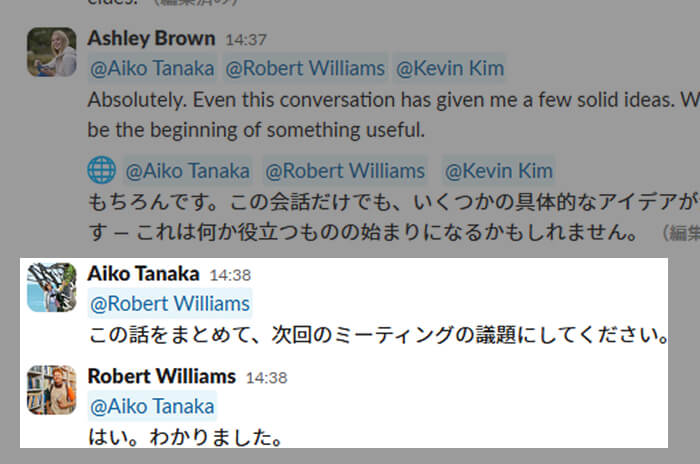
3. No translation is performed between users with the same language, so unnecessary translations are avoided.
-
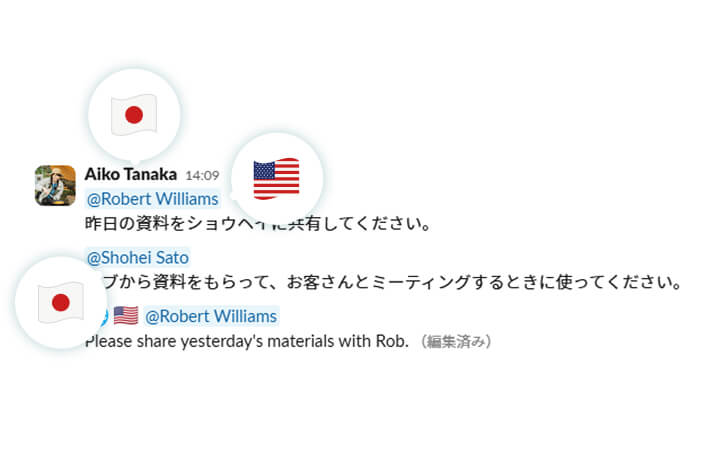
4. For example, if a sender who uses Japanese sends a message in Japanese to member A (who uses English) and member B (who uses Japanese), a translation is shown only for member A, and no translation is shown for member B.
Subscribe to a Paid Plan (Pro/Business)

1. Click "Smart Translate" from the apps shown under "App" to open its settings page, then click "Upgrade Plan."

2. Click the "Purchase" button for the plan you want to subscribe to.

3. Stripe's checkout screen will appear. Enter your credit card information or Link payment details, then click "Subscribe" to start your plan.

4. After payment is complete, you will be redirected to the login page of My Page, where you can manage all of our apps. If you already have an account, enter your login details and sign in. If this is your first time, click "Don't have an account? Register" and complete user registration.

5. (First time only) Enter the required information and click "Register."

6. My Page will be displayed, and your active apps will appear there.

7. Done. Return to Slack and confirm that your subscribed plan has been applied.
Cancel a Paid Plan (Pro/Business)

1. Log in to My Page, click the user icon, and select "Billing" from the menu.

2. Click "Cancel Subscription" and proceed with the cancellation process. Even after cancellation, you can continue using the paid plan until your next renewal date. Please note that refunds are not available.
Translating Messages in Direct Messages (DM)
Smart Translate is designed to translate messages within channels only. However, with a simple workaround, you can also translate messages in direct messages (DM).
-

1. In a direct message, right-click on the blank area next to the message you want to translate. (On smartphones, press and hold.)
-

2. Select “Connect to app” → “Translate message”. If “Translate message” does not appear, click “More message shortcuts” and then select “Translate message”. (On smartphones, tap “… More” → “View more shortcuts”, then select “Translate message”.)
-

3. A pop-up window will open and the translated message will be displayed.
Version History
-
【1.0.0】
Initial version -
【1.0.1】16.06.2026
Supported Vietnamese:
From the settings screen, you can now configure Smart Translate usage for each channel. You can easily add or remove channels to use and switch between enabled and disabled.
Improve language detection capabilities:
Improve text translation features to be more accurate and faithful -
【1.0.2】2026.08.25
New Features & Specification Changes:
・Changed the character count reset from “daily” to “monthly”
・Changed the Free plan limit (30,000 → 15,000 characters)
・Added usage information to the Settings screen
・Added a channel search feature
・Added pagination to the channel list
Bug Fixes:
・Fixed incorrect plan/usage information displayed immediately after installation
・Fixed reversed tab highlighting
・Fixed incorrect usage warning timing
・Improved the descriptions and loading speed of the upgrade screen
・Skipped translation when the licensing service is unavailable
-
【1.0.3】2026.08.28
・Added support for translating long messages
・Preserves arrow symbols at the beginning of lines
・Improved language detection accuracy
・Added automatic retries for temporary errors
・Improved error cause display for translation failures -
【1.0.4】2026.09.14
・Added support for Russian.
・Improved handling to preserve bullet points and annotation markers at the beginning of lines.
・Fixed an issue where garbled characters appeared in quoted text containing inline code.
×
![Popup image]()